Introducing AudioLens: A Plugin That Turns VS Code into an Audio Analysis Workstation
For playing, inspecting, and analyzing audio files
This post introduces AudioLens, a new extension that tries to bring the best parts of the Audacity / Audition experience into VS Code / Cursor / Trae for playing, analyzing, and inspecting audio files.
For people working on speech, sound event detection, audio algorithms, signal processing, machine learning, or audio dataset processing, one pain point shows up again and again:
The code is in the editor, the data manifest is in the editor, and the logs are in the editor. But once you need to listen to an audio file, inspect its waveform, or check its spectrum, you have to switch to a player, Audacity, a file manager, or another tool. If you are working through Remote SSH, it gets even more cumbersome because you often need to copy the audio to your local machine through SFTP or similar tools before opening it.
AudioLens is built to solve exactly this problem: keep audio engineering inspection, playback, and lightweight analysis inside the editor as much as possible.
Project links: GitHub / VS Code Marketplace / Open VSX Marketplace
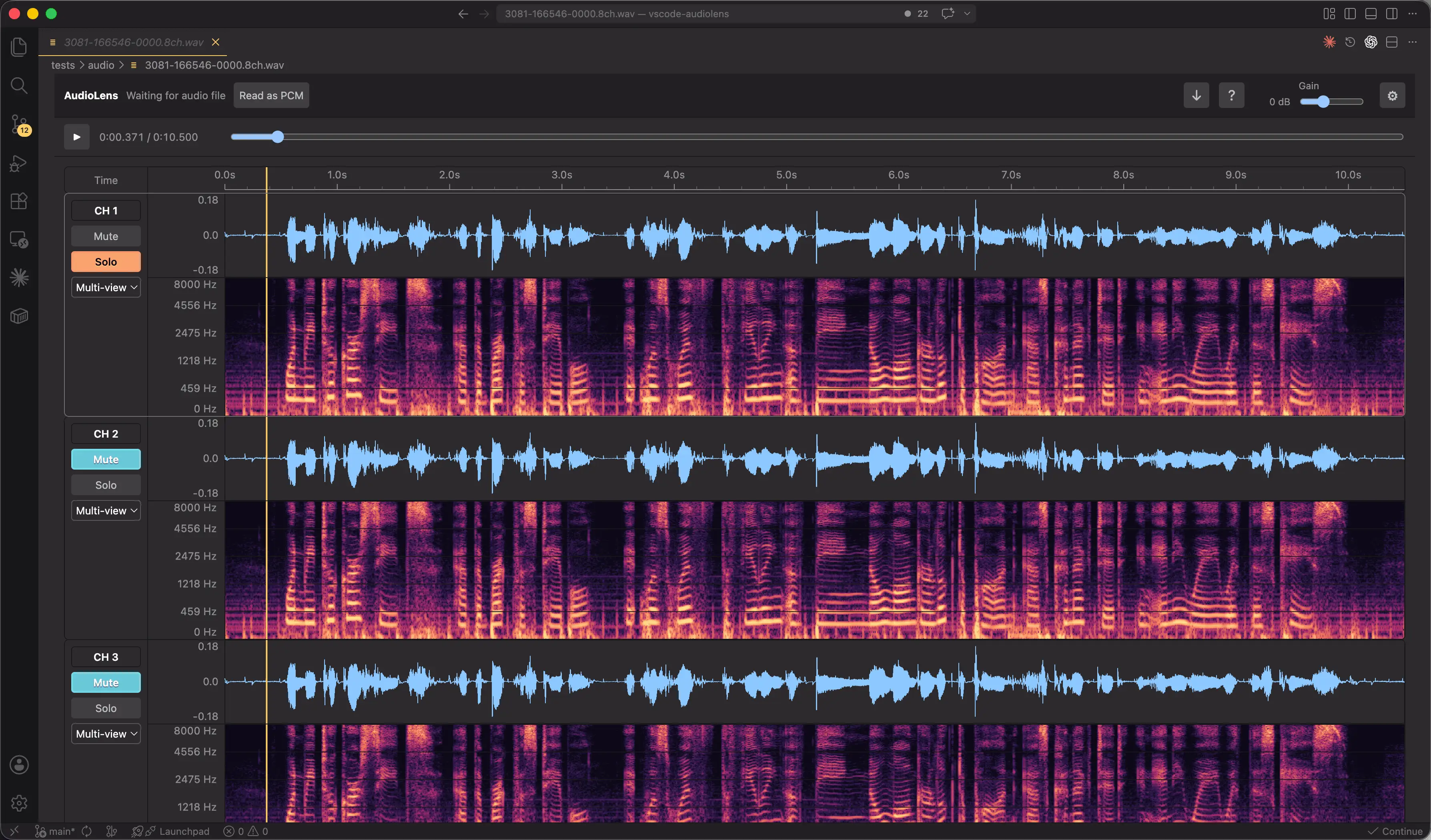
1. Quick Overview 
AudioLens is a VS Code audio inspection and analysis extension designed for audio engineering, speech algorithms, sound event detection, signal processing, and audio data debugging.
In these workflows, audio files often live next to code, configs, data lists, transcripts, model outputs, and experiment logs. Engineers usually care about questions like:
- Does this audio sample contain silence, truncation, pops, or clipping?
- Is every channel in a multi-channel file normal?
- What are the approximate RMS, peak level, dominant frequency, and band energy for a selected region?
- Can
.pcm/.rawfiles be opened directly with specified parameters? - Can Kaldi
wav.ark:offsetentries be inspected more conveniently? - Can samples on a Remote SSH dataset be spot-checked without copying them locally?
- Can audio paths inside data lists, logs, or transcripts be opened directly?
AudioLens has a clear design goal: quickly inspect audio samples without leaving VS Code / Cursor / Trae.
2. Feature Overview 
AudioLens supports common audio formats, including:
- WAV
- MP3
- FLAC
- Ogg / Opus
- M4A / AAC
- PCM / RAW
- Kaldi WAV Ark entries
2.1 Waveform and Spectrogram Views 
After opening an audio file, you can inspect its waveform and spectrogram directly:
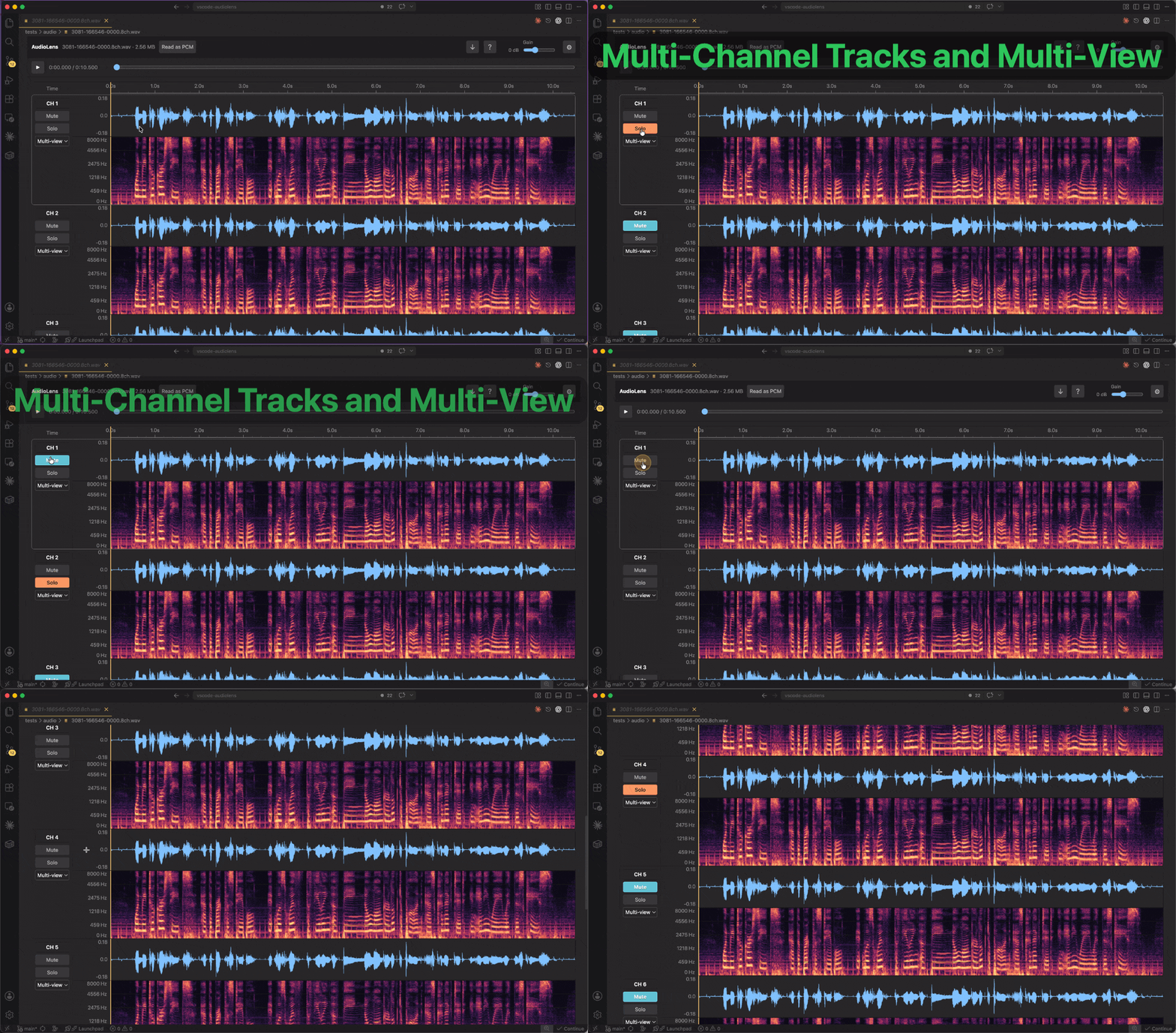
Each channel can be configured independently:
- Waveform, spectrogram, or combined view
- Mute / solo
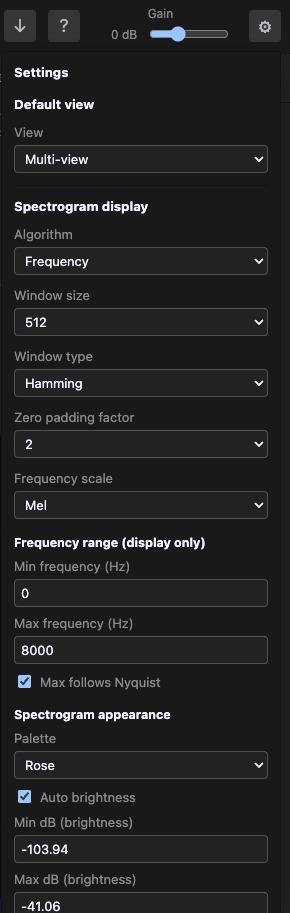
The settings menu in the top-right corner also lets you tune spectrogram parameters such as FFT size, window function, frequency range, color palette, and brightness range:
2.2 Region Playback, Region Analysis, and Region Export 
You can drag on the waveform or spectrogram to create a time selection.
Once a region is selected, you can:
- Play only the selected segment
- Inspect analysis metrics for the selection
- Right-click and export the region as WAV
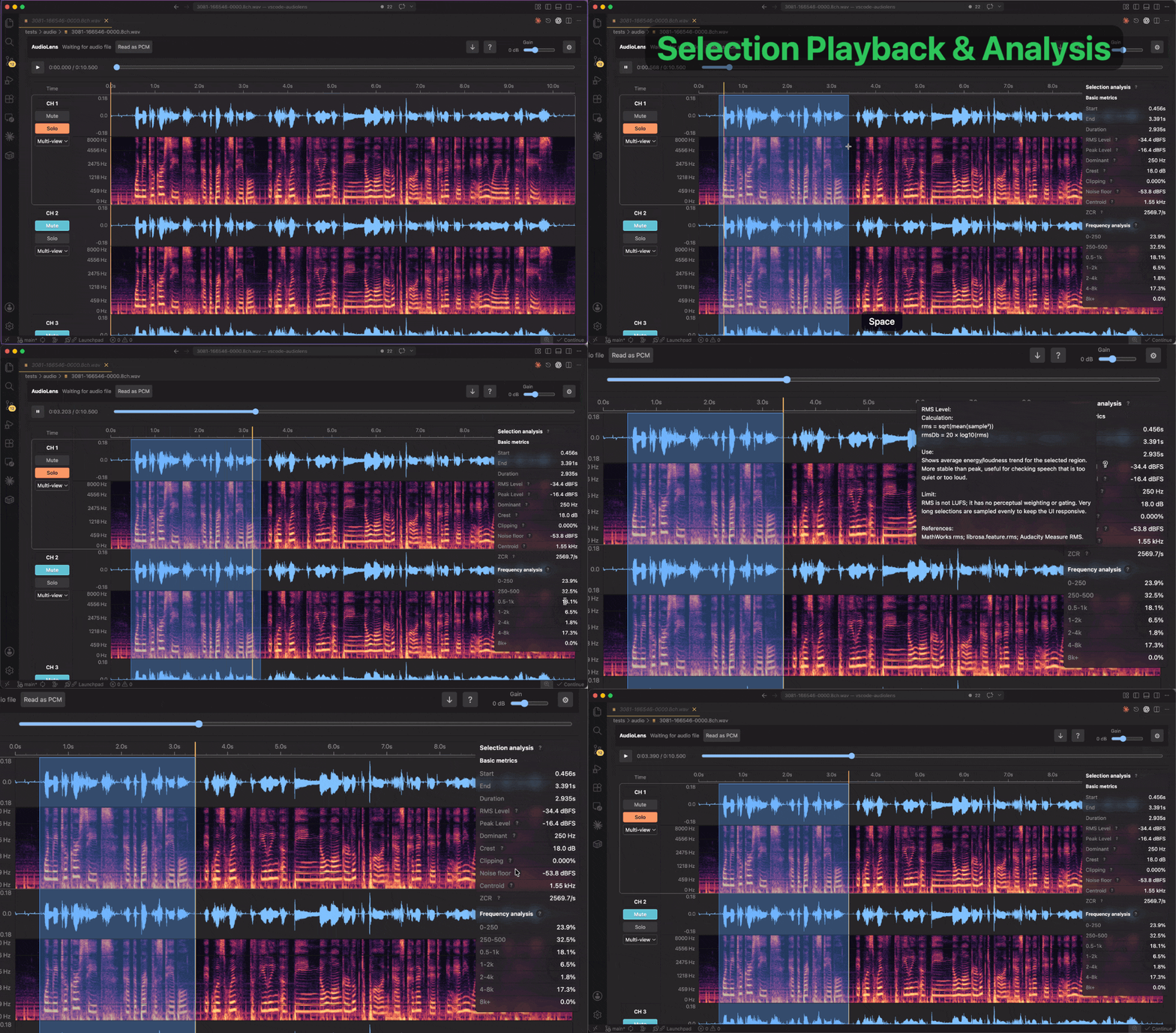
Current selection analysis includes:
- Start time, end time, and duration
- RMS level
- Peak level
- Dominant frequency
- Peak-to-average ratio
- Clipping ratio
- Noise floor estimate
- Spectral centroid
- Zero-crossing rate
- Band energy distribution
These metrics make everyday debugging faster. For example, when checking training samples, event-detection samples, or recording results, you can select an abnormal region and quickly judge whether its level, noise floor, and band distribution look reasonable.
2.3 Parameterized Loading for Raw PCM / RAW Files 
.pcm / .raw files contain raw data. The file itself does not record sample rate, channel count, bit depth, floating-point or integer format, endian order, or start offset.
AudioLens can read .pcm / .raw audio with explicitly configured parameters:
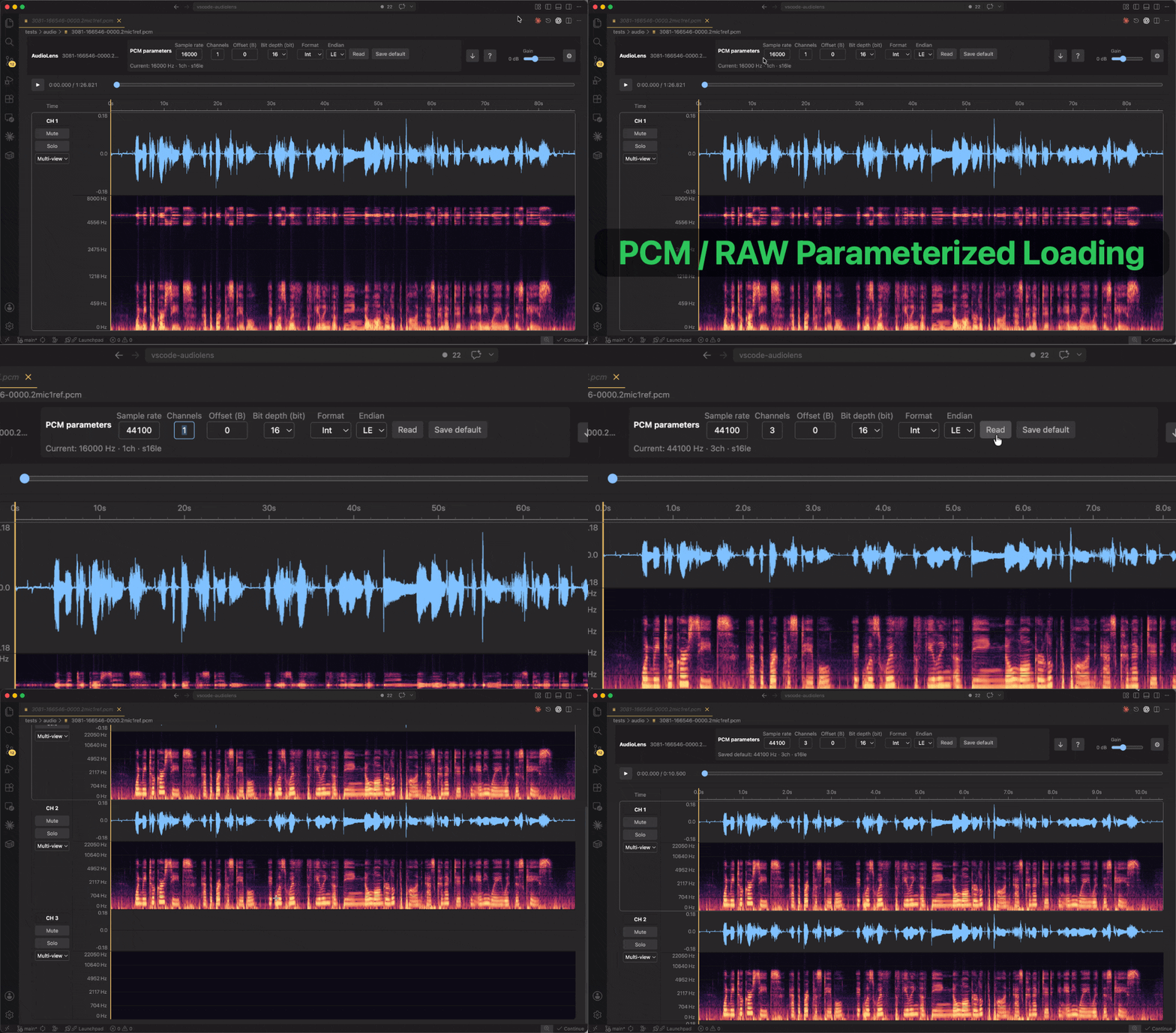
These parameters can also be saved as defaults and reused when opening PCM / RAW files later.
2.4 Audio Header Inspection 
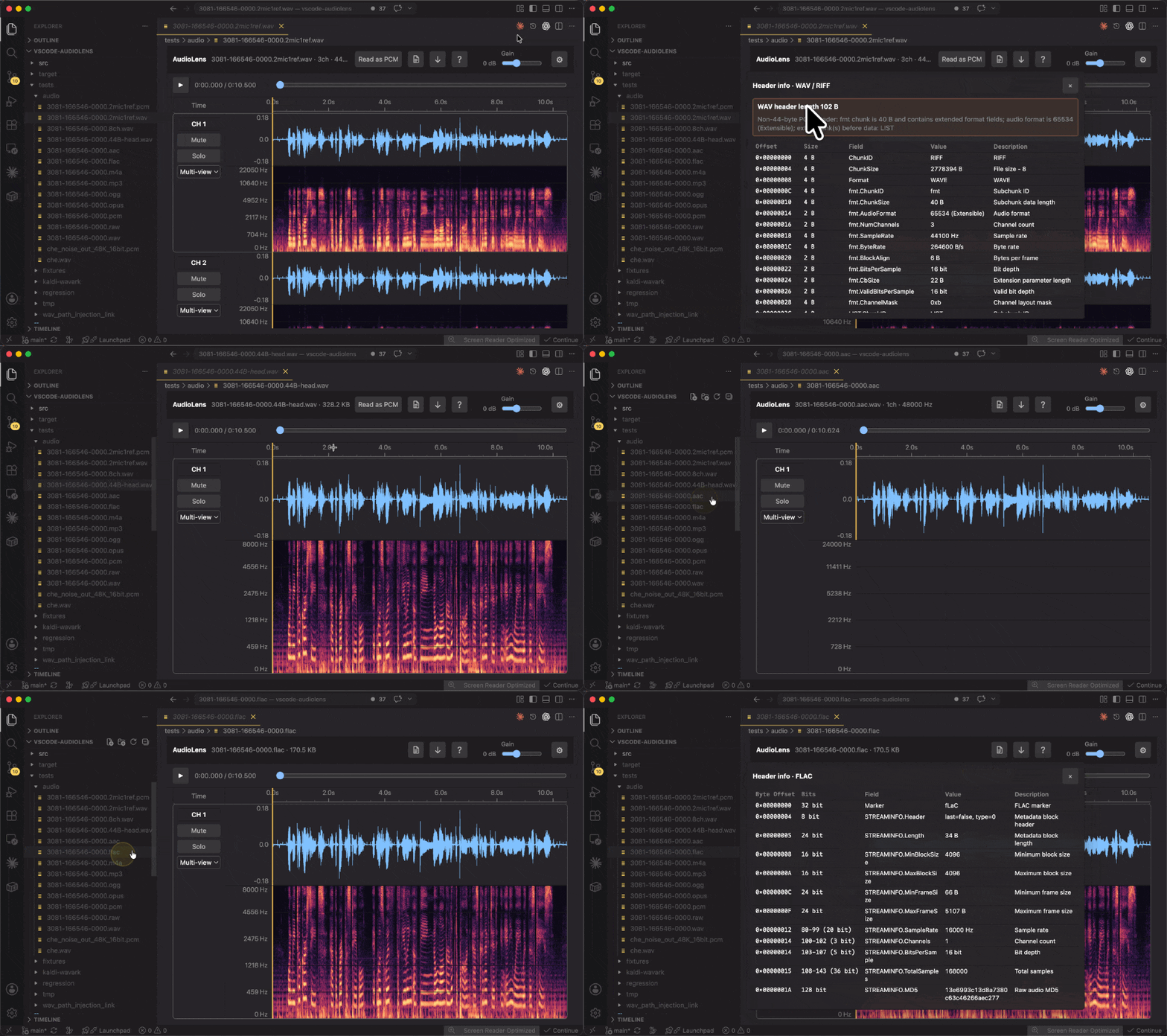
AudioLens can directly inspect structured audio file header information.
It currently supports:
- WAV / RIFF
- FLAC
- Ogg
- MP4 / M4A
- AAC / ADTS
- MP3 / MPEG frame
This is useful for debugging files that “can be played” but cause problems in a toolchain. For example, you can check whether a WAV file has a standard 44-byte PCM header, whether it contains extra chunks, or whether the fmt chunk has extension fields.
2.5 Open Audio Paths from Any Text File 
When working with audio datasets, audio paths are often embedded in manifests such as wav.scp or wavlist, as well as JSON files, logs, or model outputs.
AudioLens can recognize audio paths in normal text files. Hover over a path, then click “Open in AudioLens” to open it directly.
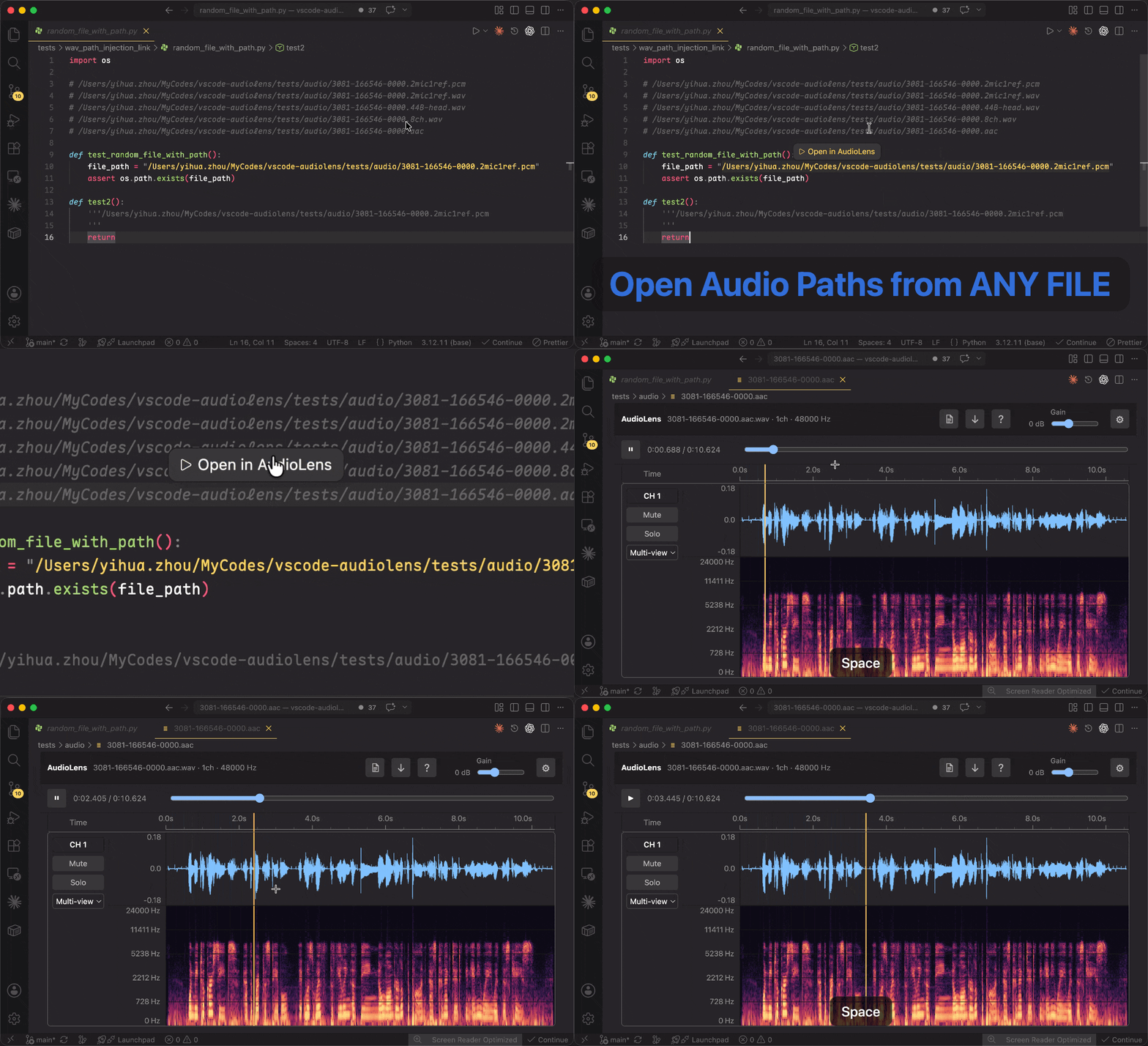
This feature has gone through several rounds of optimization. It no longer generates inline links for an entire large file upfront. Instead, it parses the current line or selection on demand.
As a result, large JSON files, logs, and manifests can still stay responsive.
2.6 Direct Kaldi WAV Ark Loading 
If your workflow still uses the Kaldi ecosystem, wav.ark:offset is a common way to index audio.
AudioLens supports two ways to open these entries:
- Use
AudioLens: Open Kaldi WAV Ark Audiofrom the command palette, then enter/path/to/wav.ark:offset - If used together with another extension, Kaldi Reader, you can jump from
/path/to/wav.ark:offsetin text and open it directly with AudioLens.
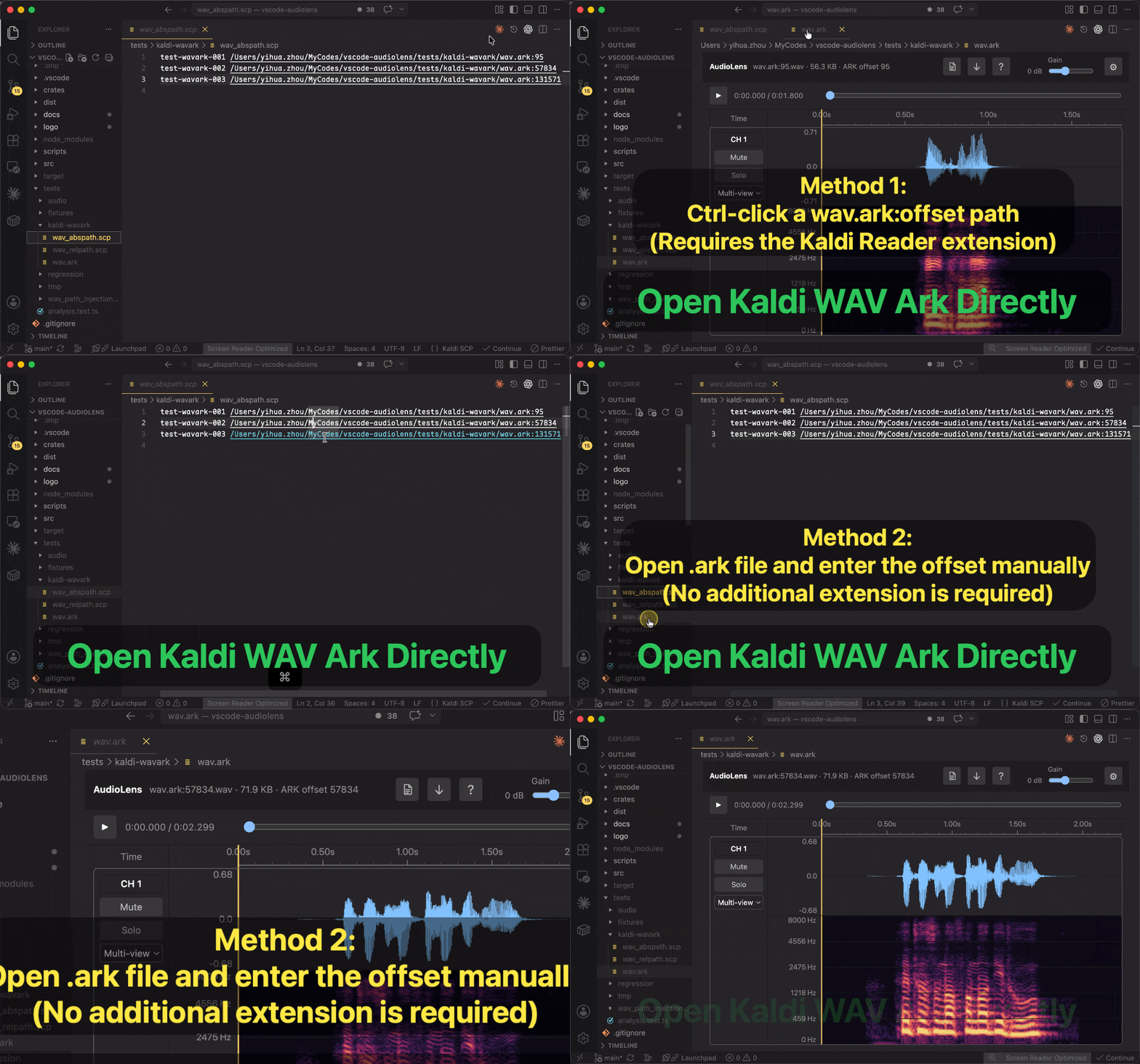
AudioLens does not load the entire ark file. It verifies that the offset points to RIFF/WAVE, then reads only the corresponding WAV file.
Kaldi Reader Extension: GitHub / VS Code Marketplace / Open VSX Marketplace
2.7 Remote SSH 
Many audio datasets live on remote training machines, experiment machines, or data servers.
In Remote SSH workflows, AudioLens reads audio files directly from the remote workspace and displays and plays them in a local VS Code Webview.
This means remote samples can be spot-checked directly, without downloading them through SFTP or similar tools.
3. Installation 
- VS Code users: search for
AudioLensin the extension marketplace, or download it from VS Code Marketplace - Cursor, VSCodium, Trae, and other Open VSX users: download it from Open VSX Marketplace
- Offline installation: download the VSIX package from GitHub Releases
4. What Comes Next 
I plan to keep improving a few areas.
-
Feature-wise, I plan to add simple audio processing operations, such as applying high-pass / low-pass filters, gain adjustment, or phase inversion to a selected channel or region, then saving the processed result as a new audio file. I also want to keep improving multi-channel display ergonomics, such as making channel height / width adjustable so important channels are easier to inspect.
-
Performance-wise, the current spectrogram computation and rendering are already good enough for everyday use. But under higher resolutions and more complex interactions, GPU rendering still has room for improvement, so WebGL / GPU-based spectrogram rendering is worth exploring later.
Closing Thoughts 
AudioLens is a VS Code audio inspection and analysis extension for audio engineering, speech algorithms, sound event detection, signal processing, and audio data debugging. Its original purpose is to make “take a quick look at what this sample actually is” faster and smoother.
If you often work with audio data in VS Code, Cursor, or Trae, AudioLens can serve as a lightweight and practical entry point for audio analysis.
If you want to learn more, report issues, or follow future updates, you can visit the AudioLens GitHub project.